
Installation
Run RDPlus Setup program and then follow the installation steps .
Your local administrator password is required after the first restart of RDPlus.
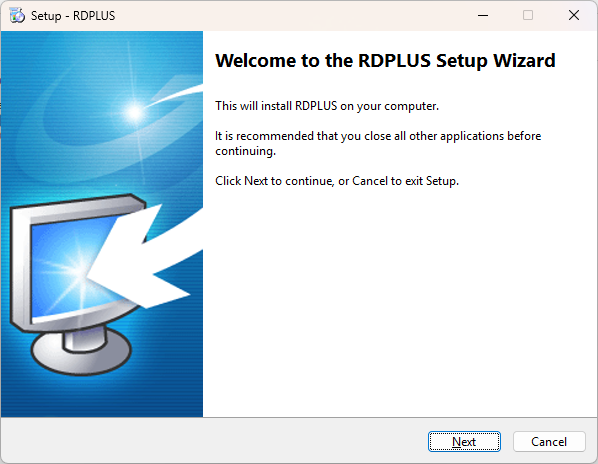
You can then select your language (possible to change it later)
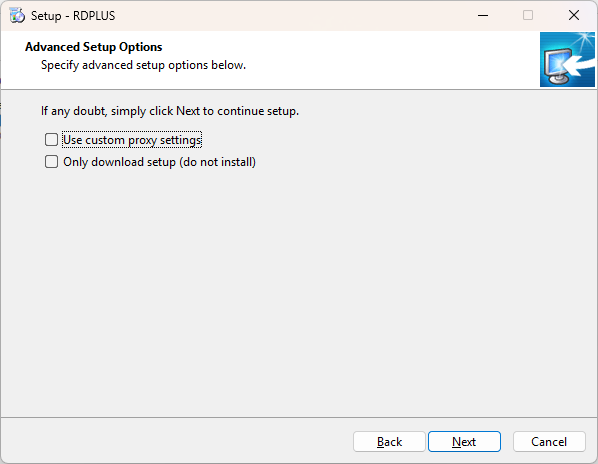
You can then select two custom options by checking the corresponding boxes: Recommended or Advanced
The Advanced option allows you to:
- Not install RDPlus Security.
- Use custom proxy settings.
- Download only the installer, which does not install RDPlus.
- Change default ports (not recommended).
Click on Next.
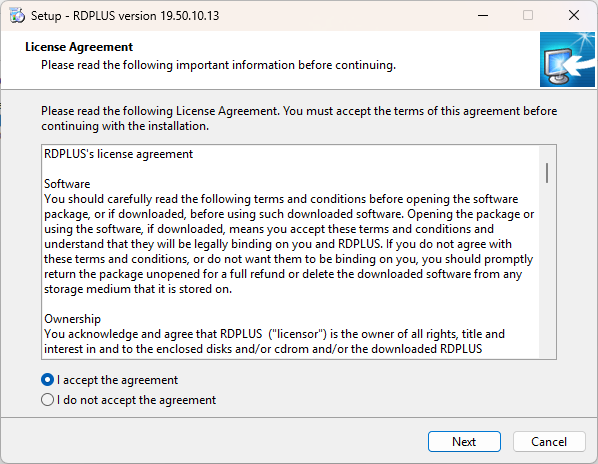
Click on “I accept the agreement”.
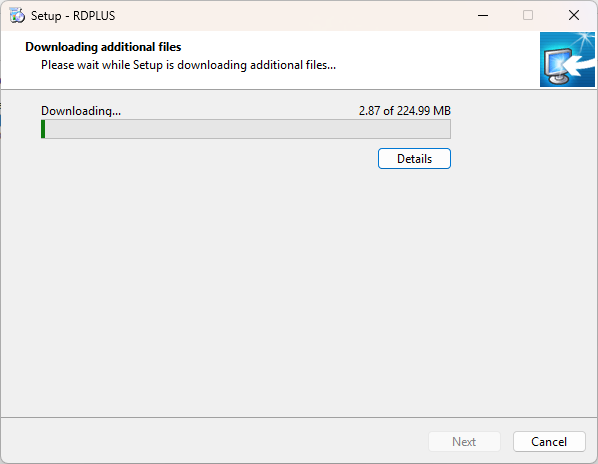
Please wait, downloading and installing the program
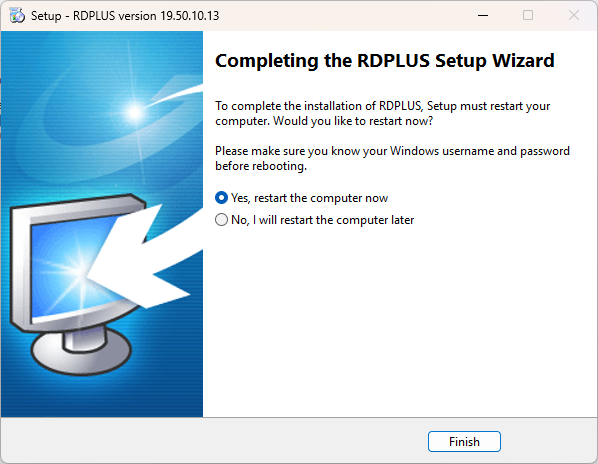
Then the RDPlus logo appears and a window informs you about the completion of the installation.
⚠ Important Notice
For security reasons, RDPlus will require you to manually enter your username and password at each login.
Make sure you know your credentials before restarting the system to avoid being locked out.
If autologon is enabled on the system, the installer will show a warning popup asking you to confirm you know your username and password.
To use RDPlus, you must reboot your system. The trial period delivers a full product for 15 days and 5 concurrent users.
The steps below only if you check install RDPlus in Advanced mode .
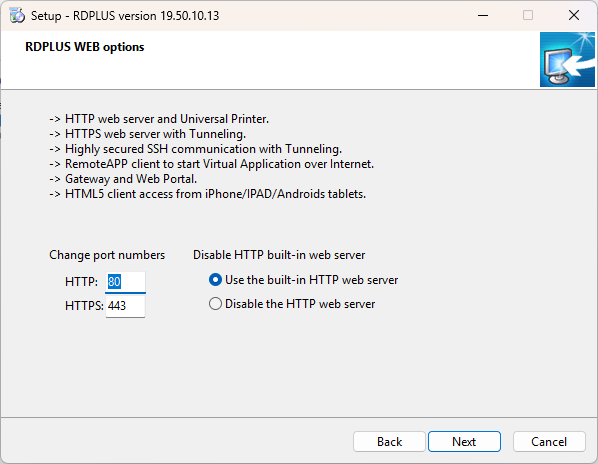
Web servers are listening on ports 80 and 443 by default. We recommend you to accept our RDPlus default installation settings. According to our experience, most of the production issues are due to Windows security features.
You can still modify these ports if you wish during installation or at any time on the Built-in Web Server Management of the AdminTool . Just make sure that the defined ports are available and that Java is installed on the server.
Click on “I accept the agreement”.
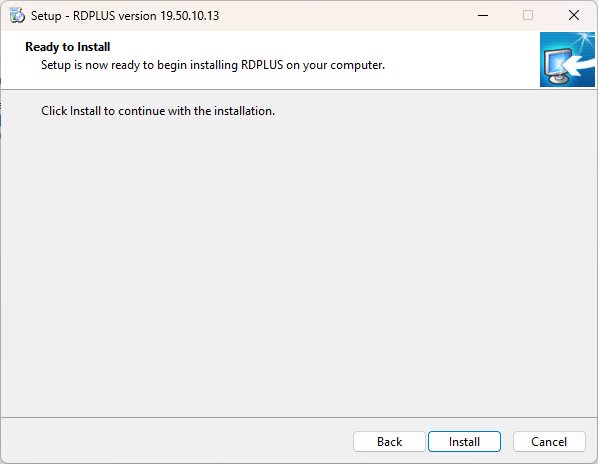
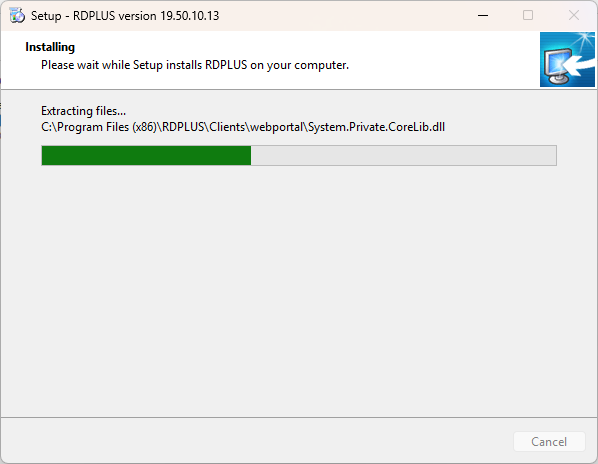
The progress bar appears and allows you to follow the progress of the process:
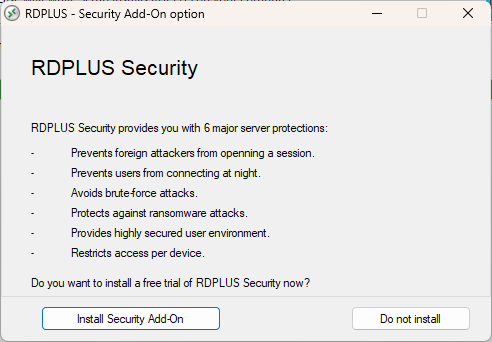
- Since RDPlus 11.40 version, you will have the choice to install RDPlus Security , our powerful Security Add-On, in its Ultimate trial version (All Security features free to use for 2 weeks) to your RDPlus system:
For more information about this product, see pages about RDPlus Security documentation .
Then the RDPlus logo appears and a window informs you about the completion of the installation.
⚠ Important Notice
For security reasons, RDPlus will require you to manually enter your username and password at each login.
Make sure you know your credentials before restarting the system to avoid being locked out.
If autologon is enabled on the system, the installer will show a warning popup asking you to confirm you know your username and password.
To use RDPlus, you must reboot your system. The trial period delivers a full product for 15 days and 5 concurrent users.
Reinstallation
You can perform a complete reinstallation of remote access by following these steps:
Create a backup following the official documentation: https://docs.rdplus.com.au/RDPlus/advanced-backup-database/ .
You can also use the following command line: C:\Program Files (x86)\RDPlus\UserDesktop\files\admintool.exe /backup. Note: The backup file will be located in the C:\Backupparam folder.Uninstall RDPlus by running: C:\Program Files (x86)\RDPlus\unins000.exe
Clean the registry: Open the Registry Editor (REGEDIT)
Delete the Digital River folder located at: HKEY_LOCAL_MACHINE\SOFTWARE\Digital RiverDelete folders: C:\Program Files (x86)\RDPlus and/or C:\wsession
Restart your server.
Install the latest version using this link: rdplus.com.au/download/
Restart your server one last time to complete the installation.
Reactivate your license: go to the “License” tab
Click on “Activate your license” or “Rehost your license” and enter your Activation Key.Restore your backup.