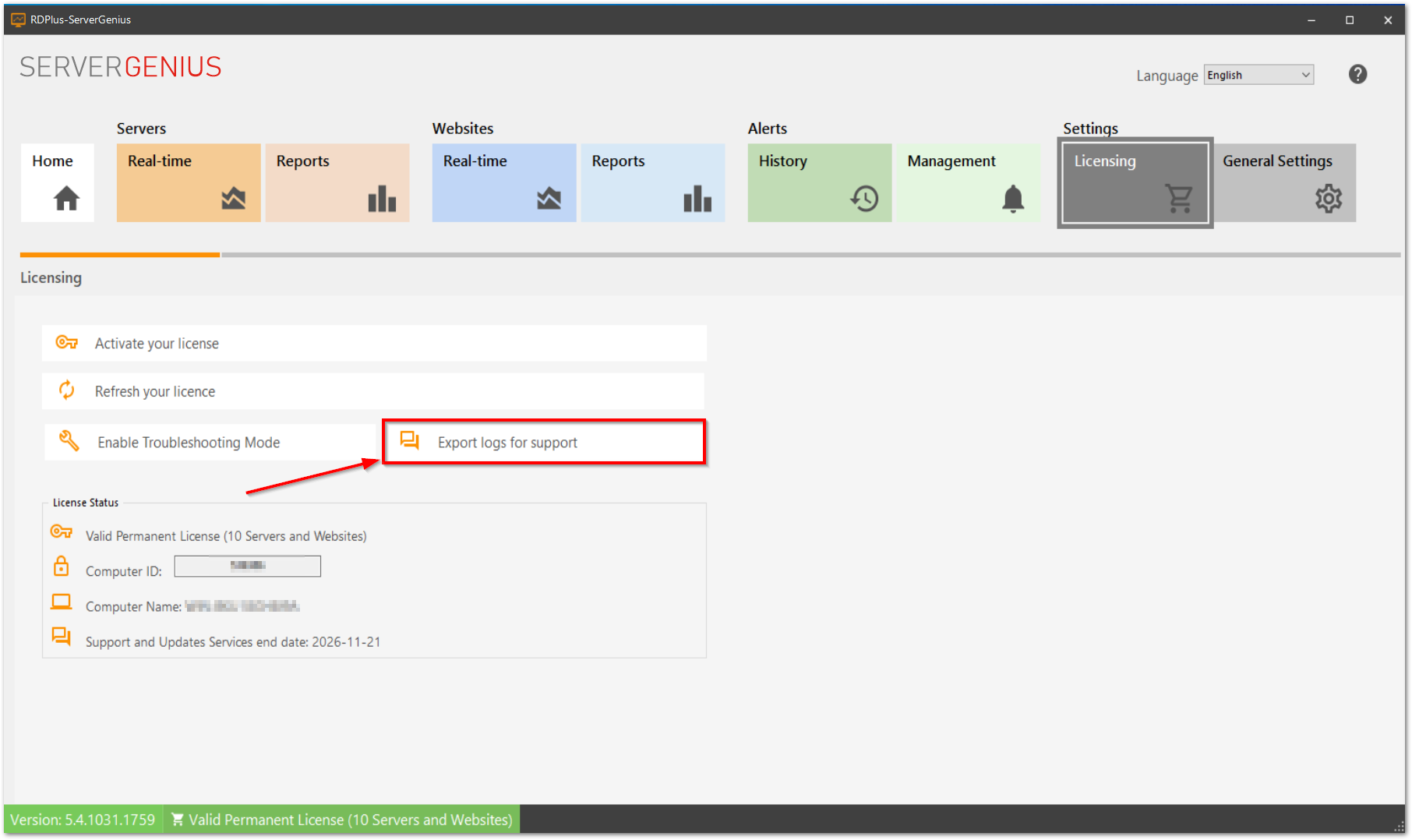
ServerGenius includes a License Administration Dashboard.
On the Home screen, you can see the status of your License in the status bar at the bottom. For example, a trial License as seen below:
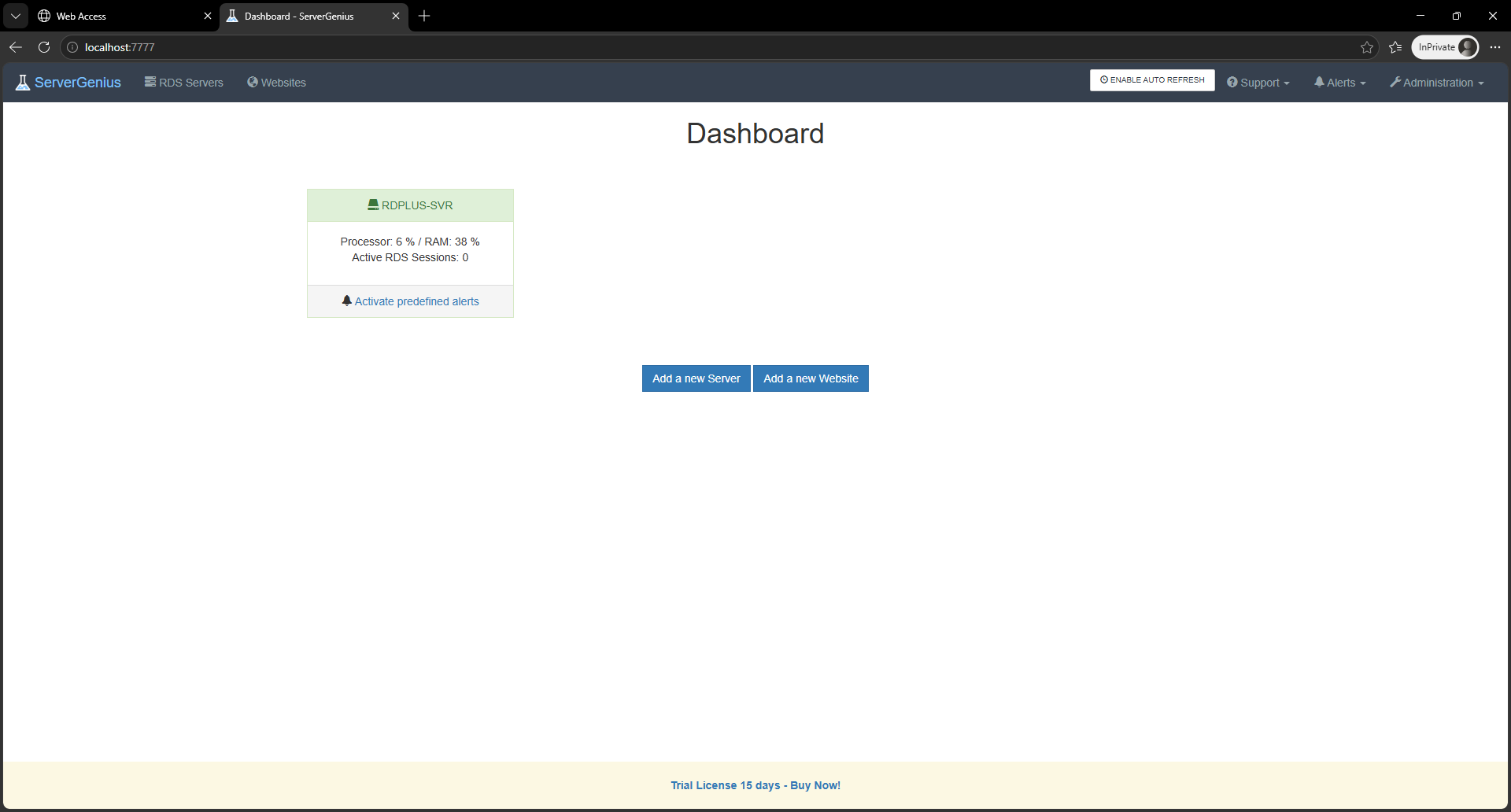
To see your License status and information, with your Computer ID and Computer Name, please click on the License button, or the license status in the status bar :
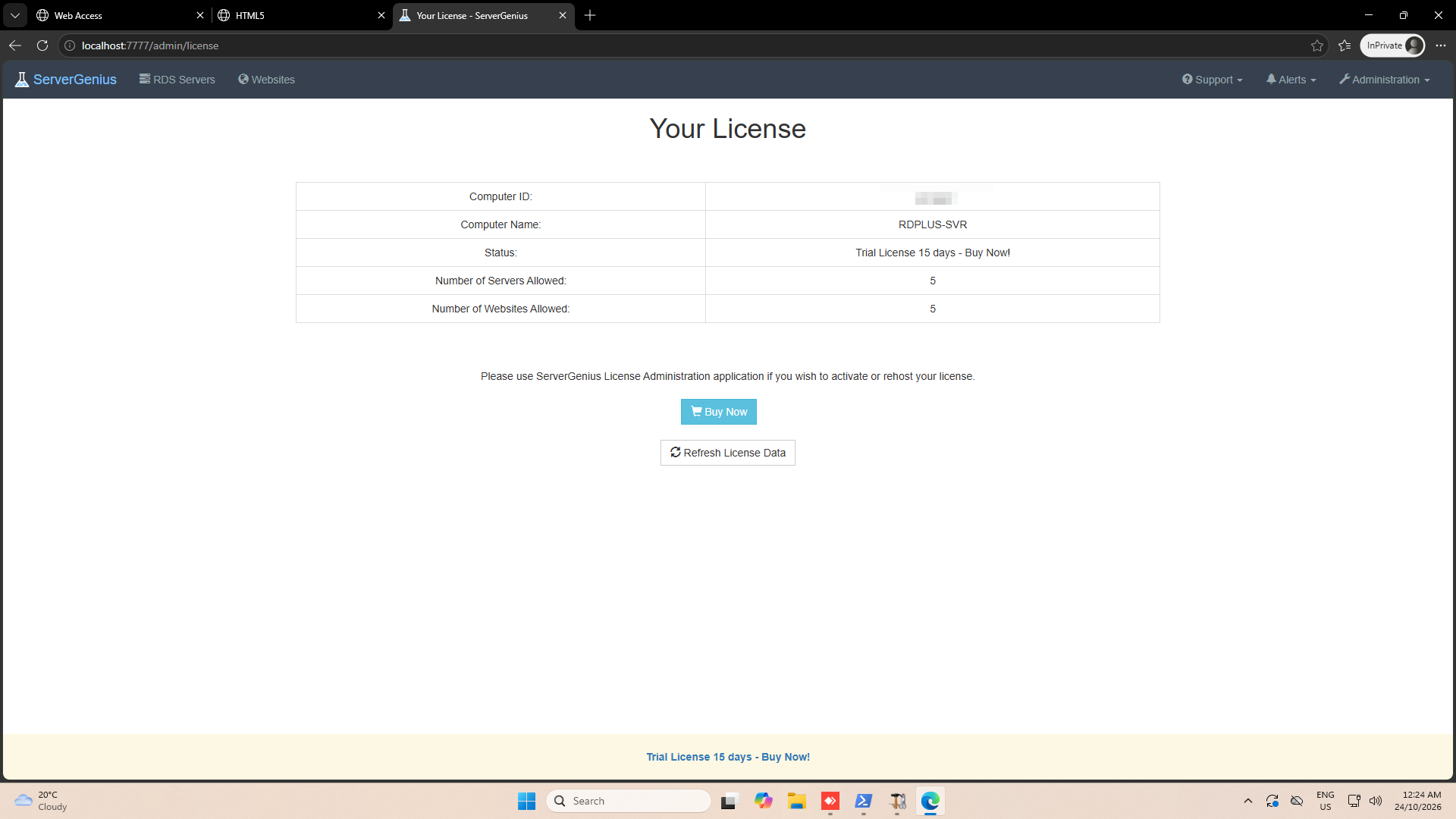
This screen shows you details about your license and offers you options for activation and updates:
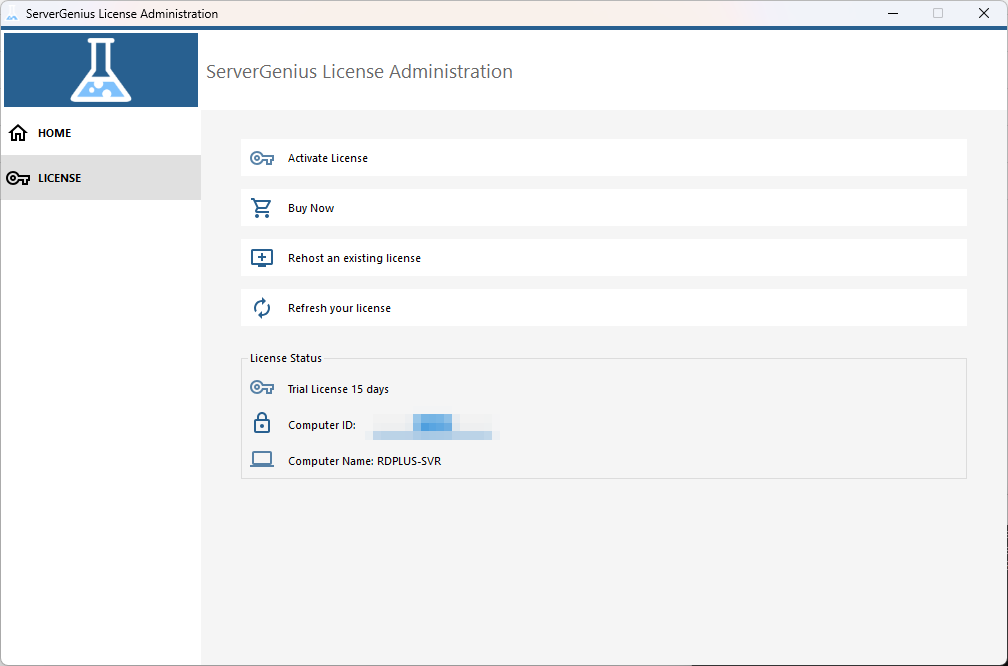
Click on the “Activate License” button then click on the “Administration” > “License” menu.
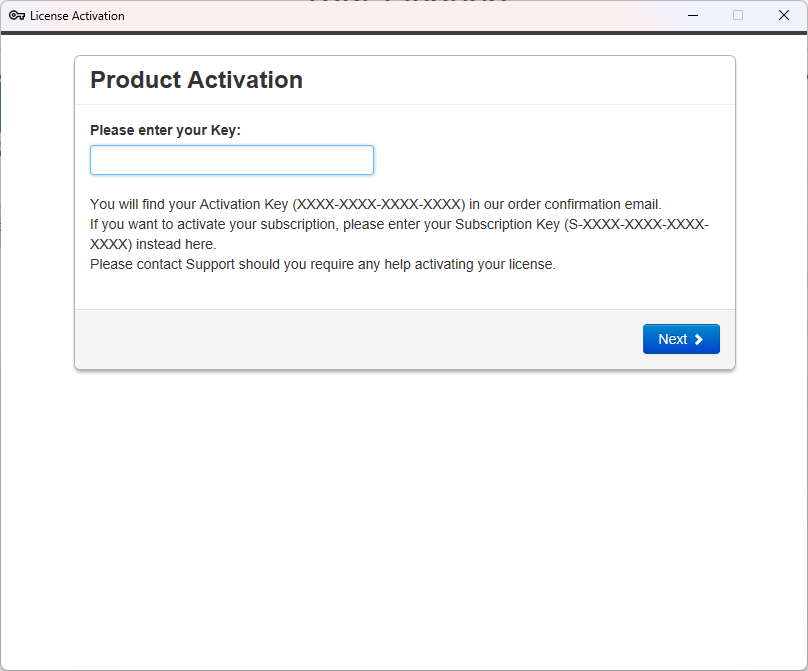
You will find your permanent activation key (XXXX-XXXX-XXXX-XXXX) in our order confirmation email.
If you wish to activate your subscription, please enter your subscription key (S-XXXX-XXXX-XXXX-XXXX) .
RDPlus emails your Activation Key to you directly after purchase. If you can’t find it, contact support@rdplus.com.au.
You will be able to see and copy your activation key. Click on the “Activate your License” button and enter it:
You can see the new status of your License by going back to your license details:
Thank you for choosing ServerGenius!
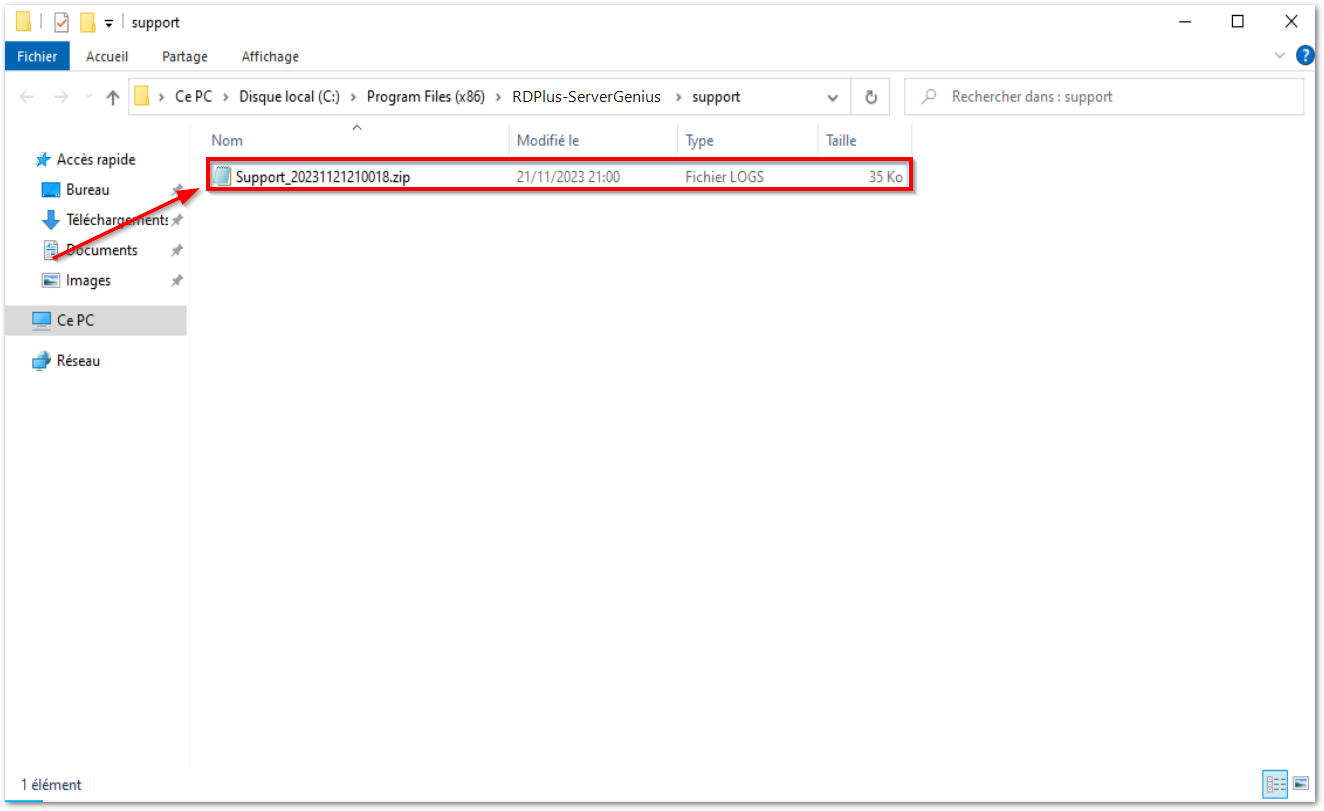
Export logs for support:
Export logs for help from support.
- Enable troubleshooting
- Reproduce the problem
- Export logs for help