
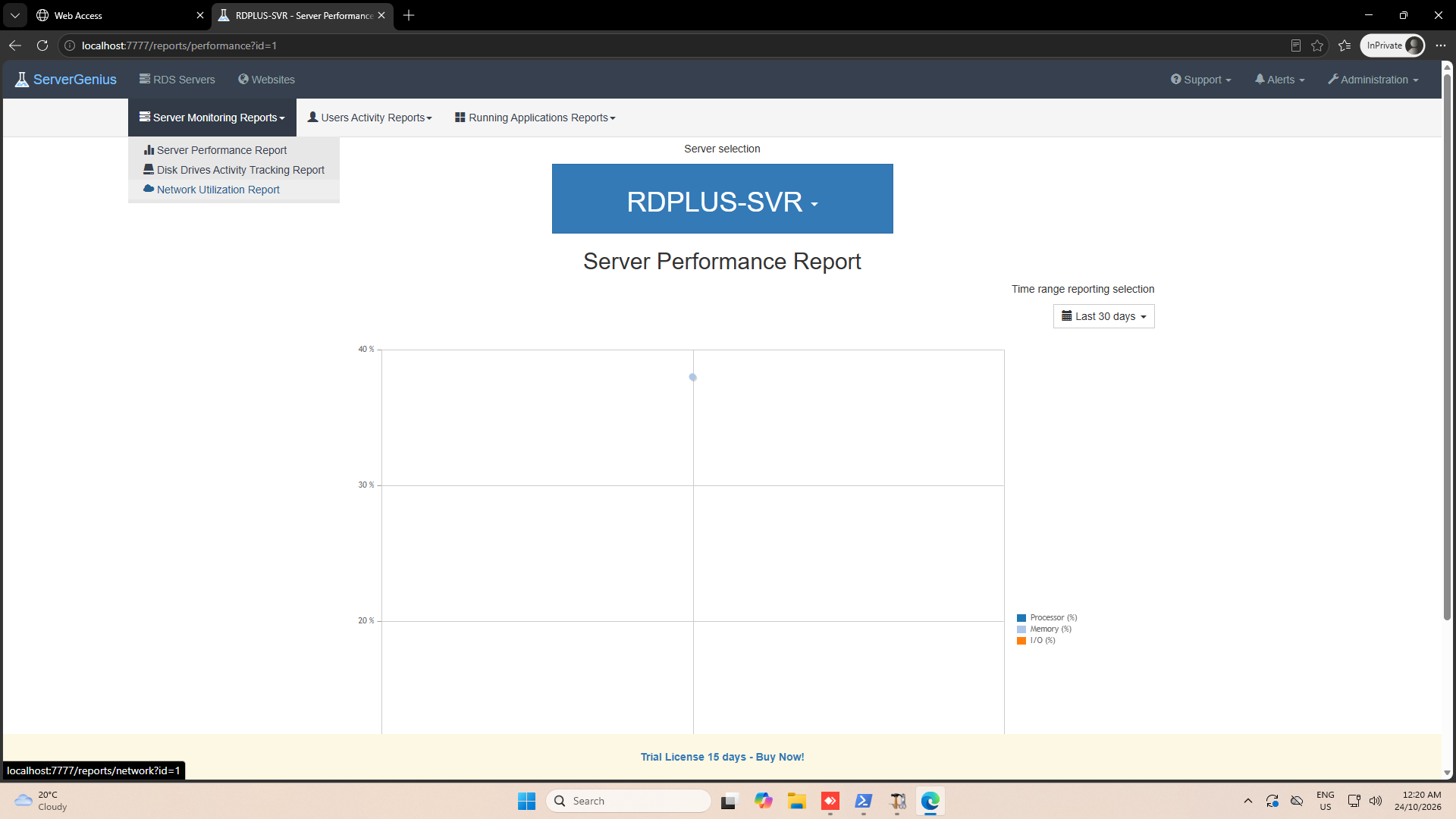
First select a report (website or server) by clicking a Server tile, then by choosing a report type in the left menu.
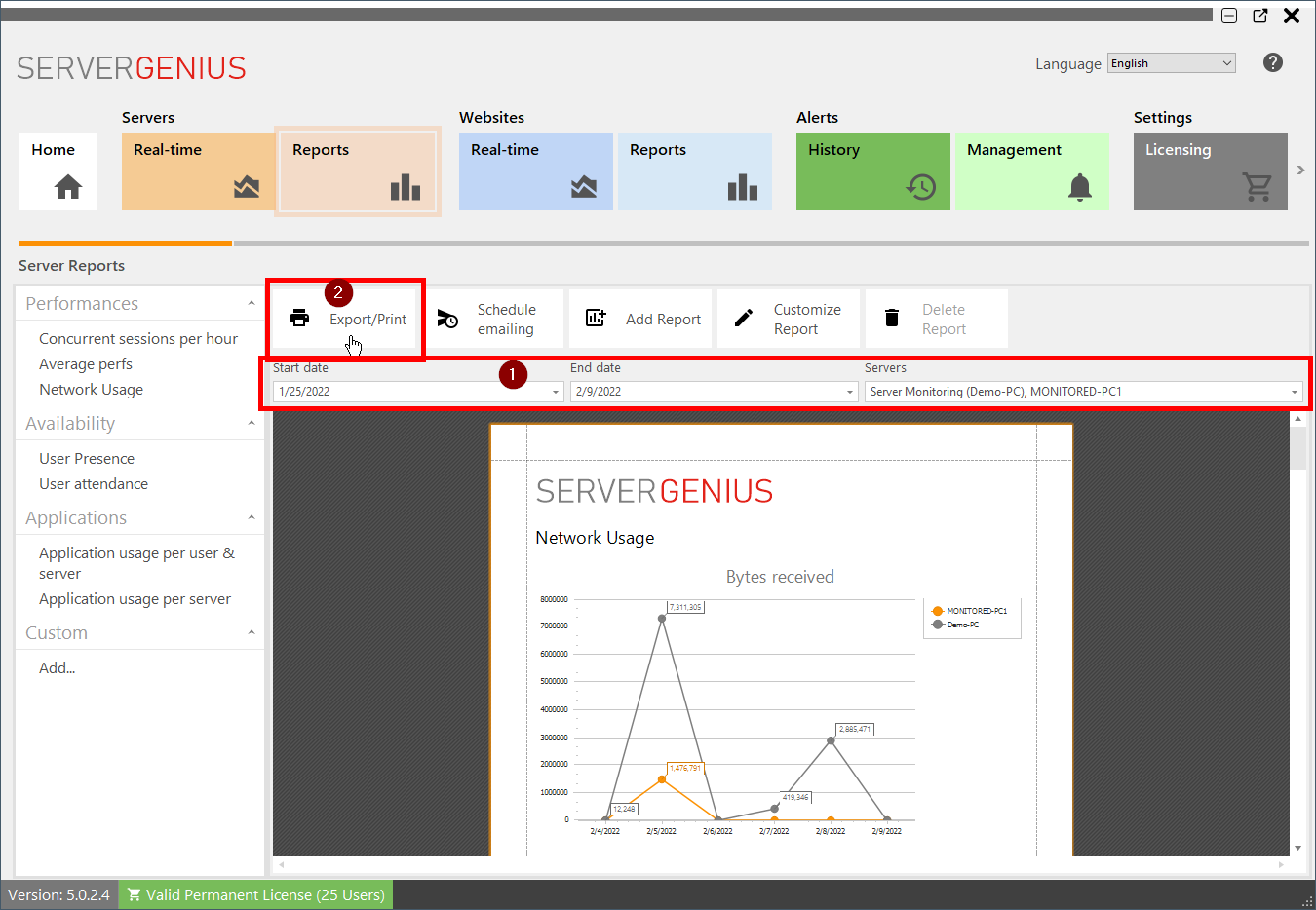
Choose the parameters than suit you, then click on the Export/Print button:
A preview tool will appear :
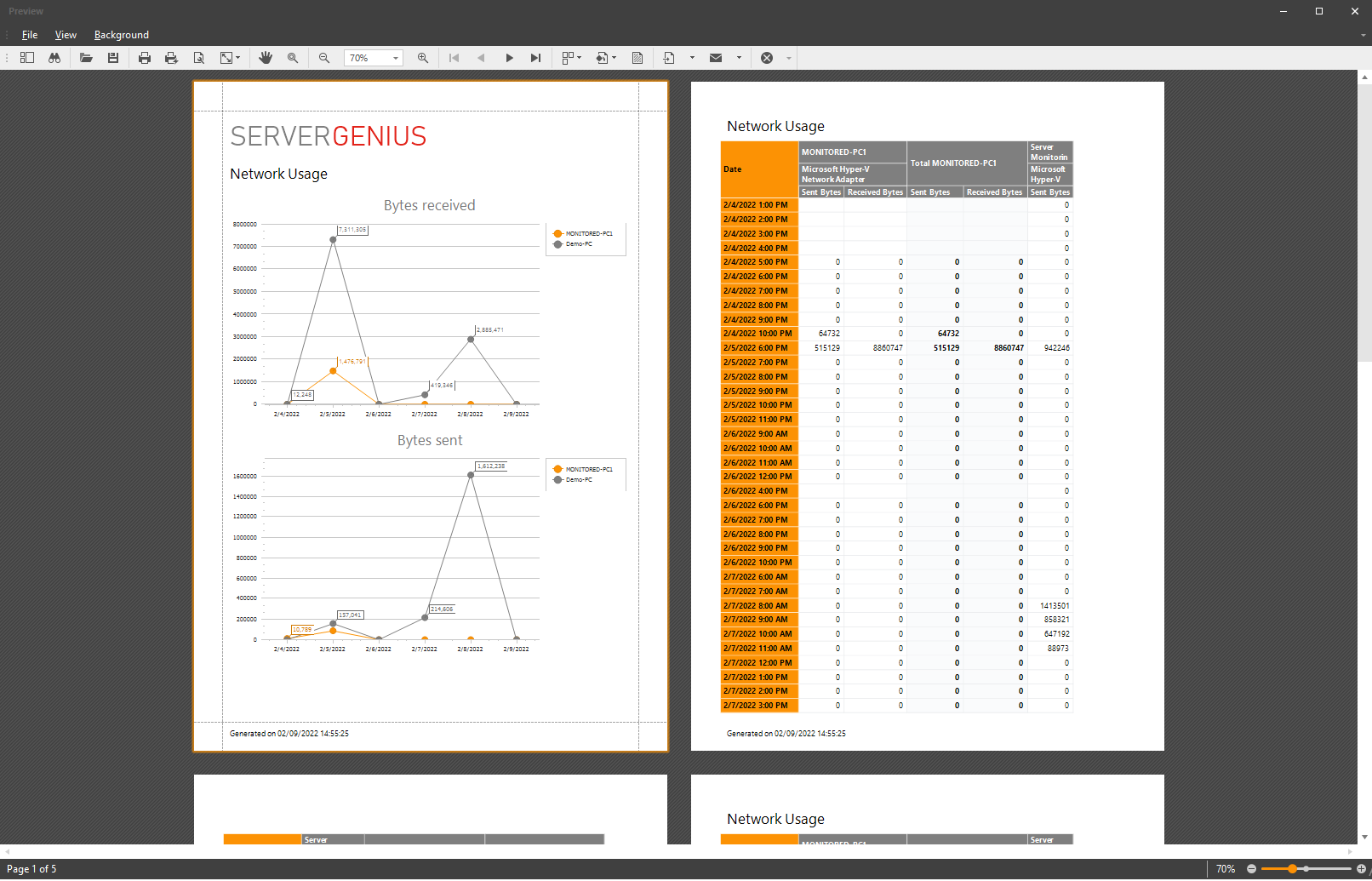
Inside the menu and the toolbar, you have numerous actions possible:
- Search inside the report
- Save the document as is (in .prnx format, this will not be useful in most cases)
- Print or quickprint the document
- Page setup (margins, orientation, etc.)
- Choose a background color
- Insert a watermark (text or picture)
- Export the document in various formats (PDF, HTML, MHT, RTF, DocX, XLS, XLSX, CSV, Text file, Image File)
- Send the document by email in various formats (PDF, MHT, RTF, DocX, XLS, XLSX, CSV, Text file, Image File)
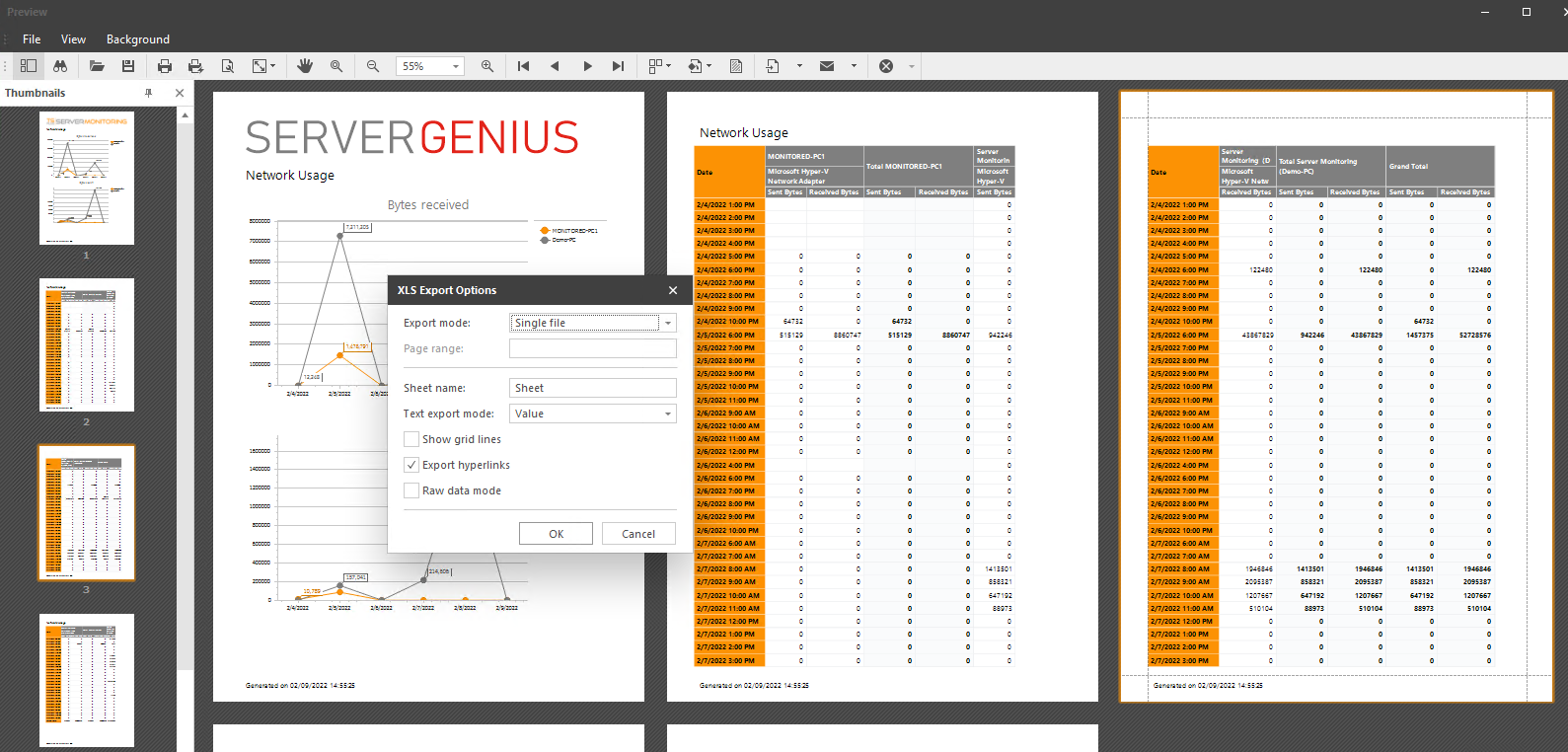
When exporting in some format, for example Excel, you may choose some options:
Then you have to choose where to save the file, and if you would like to open it after saving:
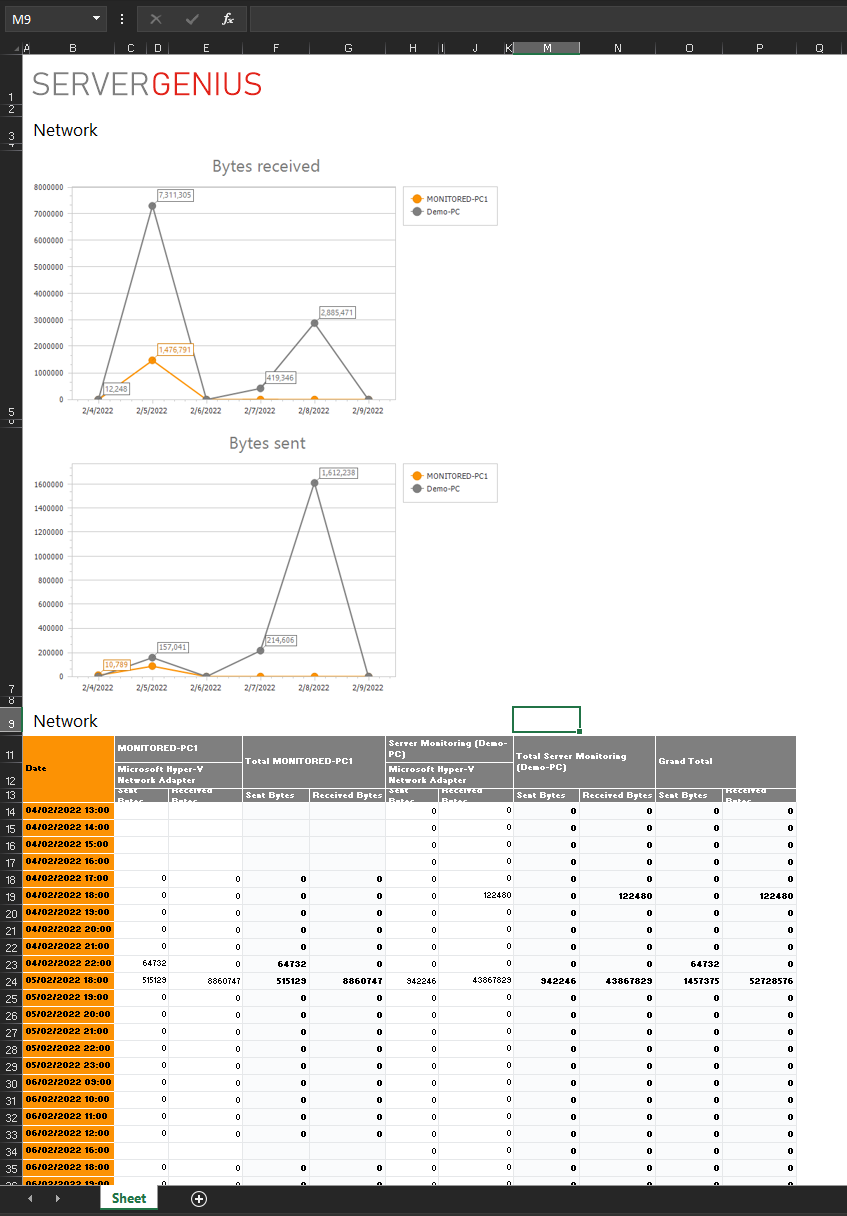
Now you have an Excel file that you can edit all that you want !