
Check out our fixes and improvements by clicking on Changelog
Our development team is working on a daily-basis to ensure the stability and compatibility of RDPlus with the latest versions of Microsoft Operating Systems and the latest Updates.
We are proud to provide you with new features and enhancements every week.
This is why it is recommended to keep your server up to date.
When a “2 sessions per server” issue occurs, typically after Windows updates on the second Tuesday of the month, please check your RDPlus (or RDPlus LTS 18/17) version.
A new release will soon be published to restore compatibility with the latest Windows update.
As a temporary workaround, you may uninstall the Windows update of the day and reboot.
Important: Avoid uninstalling RDPlus or restoring an older system image. These actions can trigger licensing conflicts that are far more complex to resolve. In most cases, a simple reboot is enough to apply compatibility fixes automatically.
By subscribing to our annual Support and Updates Services, you will have access to the latest Updates and bug fixes.
In order to see which RDPlus version you have and update it:
- You can check the status of your RDPlus release on the Home tab of your AdminTool:

- You can then click on it. Since RDPlus 11.50 version, the AdminTool automatically downloads…:
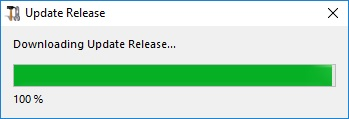
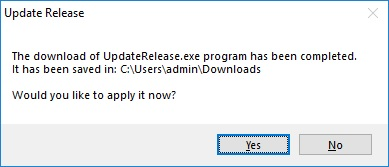
…and applies the Update Release program when requested:
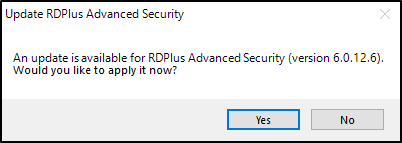
- Since RDPlus 11.40 version, you will have the choice to install RDPlus Security , our powerful Security Add-On, in its Ultimate trial version (All Security features free to use for 2 weeks) to your RDPlus system:
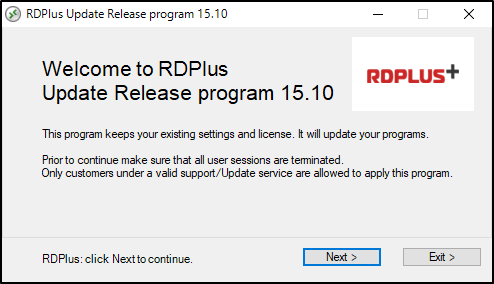
You still can download it via this link: Update Release and apply it manually.
The Update Release program is designed to keep your current RDPlus settings safe.
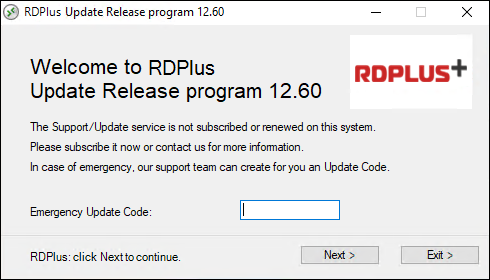
If you have not subscribed yet for RDPlus Update/Support services, or if your subscription has expired, you will not be able to run the Update Release program:
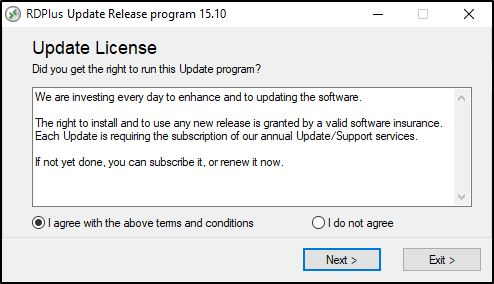
In such case, we advise you to place your order on our Store Page.
You will receive back the proper information to download your support.lic file. Activating your Update/Support services is an easy process described here .
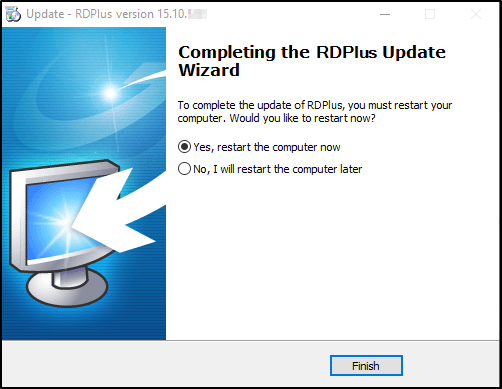
When the update is finished, a reboot is required:
For versions previous to v14, just for specific requirements, the RDPlus Support team can deliver an Emergency Update code which will unlock the Update Release program.
Update problem:
Check for the missing file
“C:\Program Files (x86)\RDPlus\reboot_required.dat”
- If this file is present, delete it.
- Restart your server
- Run the update again from this link by clicking here : Update Release